
NDI® output · free since version 2.1
Put the verse in your livestream
Biverse sends the live verse over the church network as an NDI source. OBS, vMix, Wirecast and NDI video switchers pick it up like another camera, as a full-screen slide or as a see-through lower third over the preacher. You don’t need a capture card, an extra HDMI cable or a green-screen key.
What NDI is, in one minute
NDI sends video over an ordinary computer network, the same cable or Wi-Fi the church computers already use. With NDI output on, Biverse becomes a source: any NDI-capable program or device on the same network lists it beside its cameras, and can put it on the stream with one click. Biverse and OBS can also be on the same computer.
- Window capture
- OBS must run on the Biverse computer, the projector window must be open, and you crop it by hand. On a Mac it also needs the Screen Recording permission. Still the way to go on Windows 7 and 8.
- Capture card and HDMI
- Costs money, needs a cable run to the streaming desk and uses up a display output. A lower third needs a chroma key.
- NDI from Biverse
- Free, over the network you have. Works with the projector window closed, and the lower third arrives with a real transparent background.
Two styles: lower third or full screen
Choose the style in Settings → NDI. These are the exact pictures Biverse sends; the camera shot behind the lower third is illustrated.


- Colours and font
- Both styles use Settings → Appearance: the text colour, font, bold, shadow, reference line and emphasis marks. The lower-third band is the background colour, slightly see-through.
- BLANK, BLACK and the idle screen
- In full screen they look as on the projector. In the lower third they clear the whole picture, so nothing is left over the camera when the verse is down.
- The projector
- NDI follows whatever is live. It works whether or not the projector window is open, so a church without a projector can still use Biverse for the stream alone.
Turn it on in Biverse
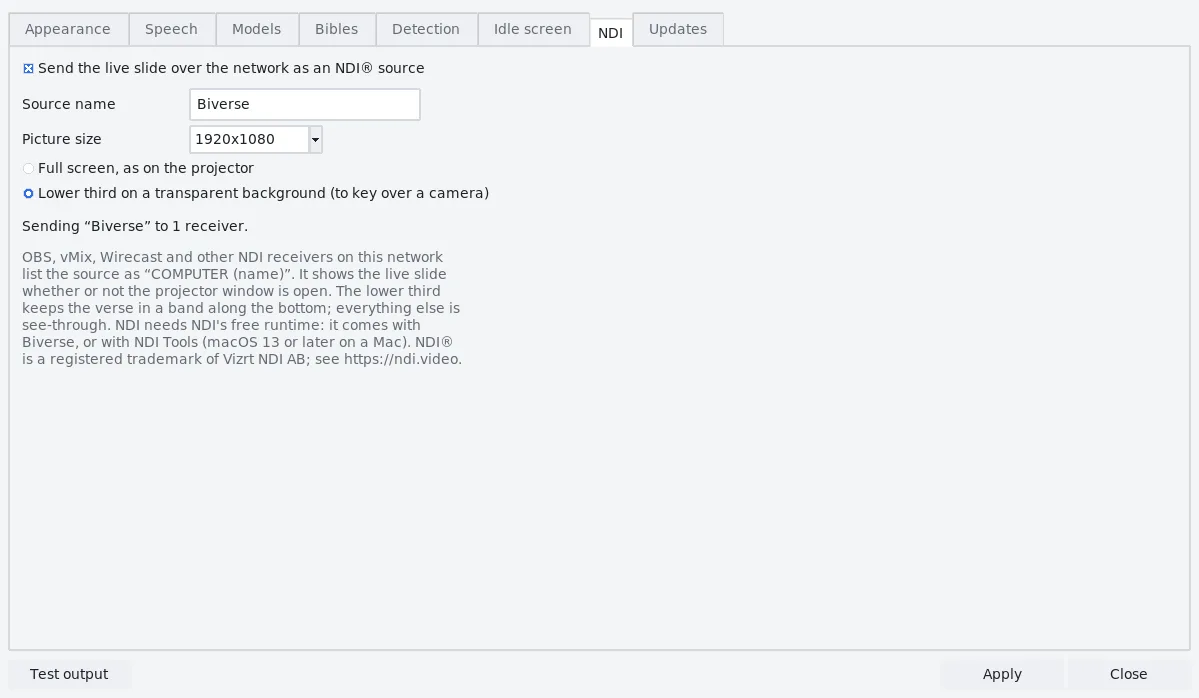
- Open ⚙ Settings → NDI and tick Send the live slide over the network as an NDI source.
- Source name: leave it as “Biverse”. Receivers list the source as COMPUTER (Biverse), where COMPUTER is this computer’s name. Give each Biverse its own name if you run more than one.
- Picture size: 1920×1080 (the default) suits most streams. Choose 1280×720 for a 720p stream or a slow network, and 3840×2160 only for a 4K production.
- Choose Full screen or Lower third, and press Apply.
- The tab shows how it is going: “Biverse” is on the network; no receiver is using it yet, then Sending “Biverse” to 1 receiver once OBS or vMix picks it up.
The first time, a Mac may ask to let Biverse find devices on your local network: choose Allow (or later in System Settings → Privacy & Security → Local Network). Windows may ask whether Biverse can use the network: allow it on private networks.
Pick it up in your streaming software
OBS Studio
OBS reads NDI through the free DistroAV plugin (it used to be called obs-ndi).
- On the OBS computer, install DistroAV and the NDI runtime it asks for, then restart OBS.
- In your service scene, press + under Sources and choose NDI Source.
- Under Source name, pick COMPUTER (Biverse).
- Lower third: drag it above the camera in the Sources list. The transparency just works; no filter or chroma key is needed.
- Full screen: put it in a scene of its own, such as “Scripture”, and switch to that scene when the verse is read.
vMix
- Add Input → NDI / Desktop Capture and choose COMPUTER (Biverse).
- Lower third: use the input as an overlay (the numbered overlay buttons on the input) so it sits over whatever camera is on air.
- Full screen: cut or fade to it like any other input.
Wirecast
- On a layer above your camera’s layer, add a shot and choose the NDI source COMPUTER (Biverse).
- Lower third: take that layer live together with the camera; the see-through parts let the camera show.
- Full screen: put it in a shot of its own.
Other receivers
Anything that takes an NDI input can use Biverse: NDI-capable video switchers and converters, other streaming software, and the free NDI Studio Monitor in NDI Tools, which is the quickest way to check the source from any computer on the network.
What you need
- The Biverse computer
- The
windows-x64download on Windows 10 or 11, or any Mac download on macOS 13 or later. NDI’s free runtime comes with these downloads; nothing else to install. The Windows 7/8 and 32-bit downloads don’t include NDI: use window capture there. - The receiving computer
- OBS with DistroAV, vMix, Wirecast or any other NDI receiver. It can be the same computer.
- The network
- Both on the same local network. A network cable is best; Wi-Fi works, but a busy one can make the picture late. Guest Wi-Fi that keeps devices apart blocks NDI.
- Bandwidth and processor
- Small. The slide only changes when the verse does, so Biverse sends a new picture then and repeats it once a second for receivers that join late. Nothing is drawn or sent while no receiver is connected. An idle video in full-screen style sends more.
NDI stays on your local network. Biverse sends the slide picture only to receivers there, never to the internet, and still needs no account.
Troubleshooting
- The receiver doesn’t list the source
- Check the NDI tab says the source is on the network. Make sure both computers are on the same network (not the guest Wi-Fi), the firewall lets Biverse through, and on a Mac that Local Network is allowed for Biverse. NDI Studio Monitor on the receiving computer tells you whether the problem is the network or the streaming software.
- “The NDI runtime is not on this computer”
- You are on a download or build without it. Install NDI Tools from ndi.video and restart Biverse.
- The lower third covers the camera in black
- Biverse is set to Full screen: choose Lower third. In vMix, use the input as an overlay instead of cutting to it.
- Two sources with the same name
- Two copies of Biverse are using one name. Give each a different Source name.
- The verse arrives late or stutters
- Use a network cable instead of Wi-Fi, or a smaller picture size.
- A line breaks at a different word than on the projector
- Expected now and then: the NDI picture is drawn separately from the projector window, at its own size.
Every other setting is in the documentation. NDI® is a registered trademark of Vizrt NDI AB.