Everything the operator window does, every setting and what it changes, written for the person at
the media desk. You don’t need to be technical. The
user guide has the same material with
installation and projector set-up in more detail.
Quick start
Install.Download the zip for your computer, unzip it and open
Biverse. On Windows, if “Windows protected your PC” appears, click More info → Run anyway. On a Mac,
right-click Biverse.app and choose Open the first time.
Connect the projector as a second screen, extended, not mirrored (Windows key + P →
Extend). In Biverse choose it under Output and press Show output.
The projector turns black until a verse goes live.
Choose the sound under Input: a microphone near the pulpit or speaker, or
better, a feed from the sound desk through a USB audio interface. The level meter should jump when someone
speaks.
Press Listen (Ctrl+L, Cmd+L on a Mac). The dot turns red. Words appear in the transcript, and
each reference the preacher says lands in Preview.
Press GO LIVE (Ctrl+Enter or F5) to put it on the projector. BLANK (Esc)
clears the text; BLACK (Shift+Esc) blacks out the screen.
The operator window
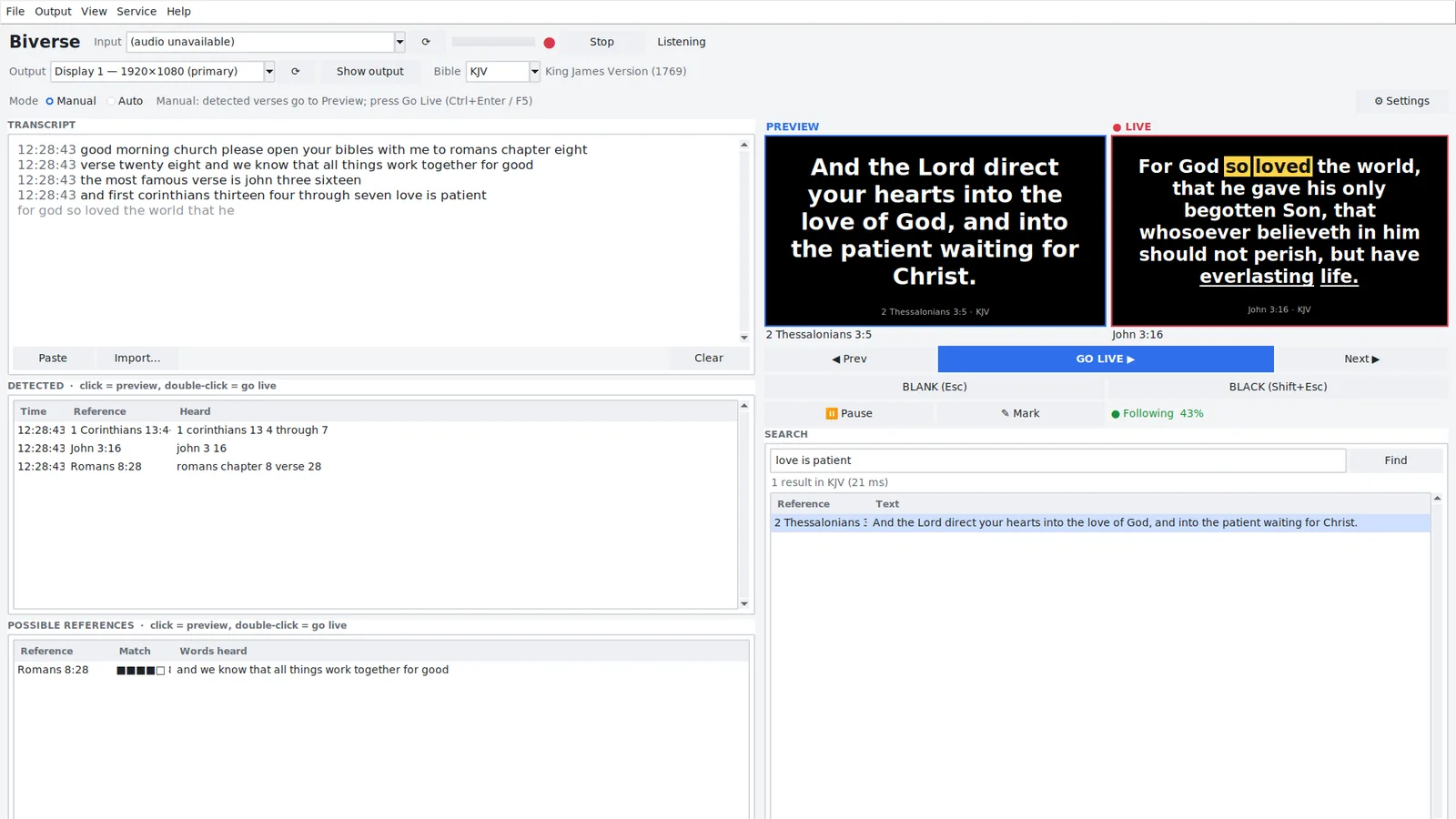
The operator window during a service.
The window is for you; the congregation only sees the projector. It opens full screen (F11, or Ctrl+Cmd+F on a
Mac, switches) and fits a screen as small as 1024×600. From top to bottom:
Input, ⟳ and Listen
The sound source with its level meter. Press ⟳ after plugging in a microphone or
audio interface. ● Listen starts and stops listening; it reads Stop while on.
Output, ⟳ and Show output
The screen the verse goes to. Biverse picks the first screen that isn’t
your main one. Show output opens the projector window; it then reads Hide output.
Bible
The translation on screen. Online versions end in (online).
Mode: Manual / Auto
Whether detected verses wait in Preview or go straight to the projector (see
Manual and Auto).
What Biverse hears, with the time of each line. Grey text is still being worked out.
Paste, Import… and Clear work on the sermon record (see
Sermon summary).
Detected
Every reference heard, newest first, with the time and the words that triggered it. Click
one to preview it again; double-click to send it live. (relative) marks a “verse 18” resolved against
the chapter on screen.
Possible references
Verses the preacher quoted without saying where they are, with how well each
matched. Click to preview, double-click to send live.
Preview and ● LIVE
Small copies of what is waiting and what the congregation sees now, drawn
exactly as the projector will show them. Under them: ◀ Prev, GO LIVE ▶,
Next ▶, BLANK (Esc), BLACK (Shift+Esc),
✎ Mark for emphasis, and the following indicator with ⏸ Pause.
Search
Type a reference or words and press Find. The box shows what is live, so you
can see it and change it.
Status line
At the bottom: what Biverse is doing, each voice command it heard and the progress of
downloads.
The menus hold the rest: File (Settings…, Quit), Output (Show / hide output, Toggle
output full screen, Test output, Refresh displays), View (Full screen), Service
(Sermon summary…, Start a new sermon, Open a previous sermon…, Paste / Import / Clear transcript) and
Help (Keyboard shortcuts, Open log folder, Check for updates…, About). The window follows your
computer’s light or dark setting.
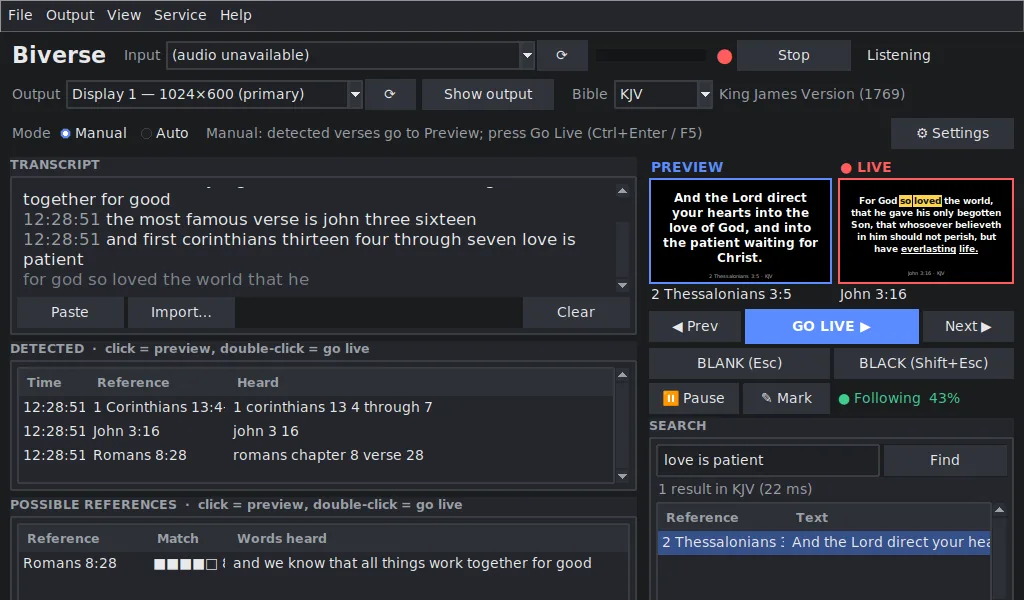
The dark look on a 1024×600 netbook screen.
Running a service
Start Biverse and wait until the status no longer says Loading speech model… (a few seconds).
Check Input, Output and Bible.
Press Listen. Words appear in the transcript as they are heard.
When a reference is heard it appears under Detected and loads into Preview,
usually about a second after the preacher says it, even if they read straight on.
Check the preview and press GO LIVE. Ranges such as John 3:16–18 show one verse at a time; use
Next ▶ / ◀ Prev or the → / ← keys, or let Biverse follow the
reading.
BLANK (Esc) clears the text and keeps the background. BLACK (Shift+Esc) blacks
out the screen. Press the same button again to bring the verse back.
Before the service, Output → Test output puts Psalm 23:1 on the projector so you
can check it.
Manual and Auto
Manual (the default)
Detected verses go to Preview. Nothing reaches the congregation until you press
GO LIVE. Use it whenever someone is at the computer.
Auto
Detected verses go straight to the projector. Use it when nobody can operate the computer, for
example a small midweek meeting.
Switch with the Mode buttons or Ctrl+M. In Auto mode Biverse only sends a reference live when it heard both a
chapter and a verse (“Romans eight” alone goes to Preview); you can change that in Settings → Detection. Trust
Auto when the sound is clean, the preacher says references clearly, and a wrong verse for a few seconds would not
matter. Try it in a rehearsal first.
How references are heard
Biverse turns the sound into words on the computer, with no internet, and looks for Bible references in them. It
understands:
“John three sixteen”, “John chapter three verse sixteen”, “John three colon sixteen”.
Ranges: “First Corinthians thirteen four through seven”, “verses four to seven”.
Whole chapters: “Romans chapter eight” shows verse 1, and you step on with Next.
“Psalm one nineteen” as Psalm 119; “Job 120” as Job 1:20 and “John 316” as John 3:16, unless a quantity
follows (“my job 365 days a year” is ignored).
Relative verses: after John 3:16, “now look at verse eighteen” means a verse in the chapter on screen.
Names that are also everyday words (Mark, John, Job, Acts, James, Jude, Ruth, Joel, Amos, Titus, Numbers, Judges)
only count with a chapter and a verse, or with the word “chapter”. “I lost my job three years ago” is
ignored; “Job nineteen twenty five” is detected.
While the preacher is still speaking
A full reference (book, chapter and verse) is picked up from the live words, about a second after it is said
with Kroko and in under a second with Nemotron, even when the preacher reads straight on into the verse. Before,
Biverse waited for a pause, which could take several seconds. Chapter-only and “verse 18” references still wait for
the pause. Turn it off in Settings → Detection → Detect references while the preacher is still speaking.
Verses quoted without a reference
When the preacher quotes a verse without saying where it is (“for God so loved the world that he gave his only
begotten Son…”), Biverse recognises it from the words, in any installed translation and even when the wording is
modernised (“loves” for “loveth”). The verse appears in Preview marked Possible reference, and under
Possible references with up to four other candidates. Biverse never sends one live by itself: you
check it first. Common phrases found in many verses, and the verse already on screen, are not suggested.
Voice commands
The preacher can move the slide in their own words. In Auto mode the projector changes straight away; in Manual
mode the new verse goes to Preview. The status line shows what Biverse heard and did.
The preacher says
What happens
“next verse”, “the next one”, “one more verse”, “Next.”
Next verse
“go back”, “can we go back?”, “the verse before”
Previous verse
“go back two verses”, “skip ahead three verses”
Moves that many verses
“next chapter”, “go back a chapter”
Verse 1 of that chapter
“go back to chapter three”, “turn to chapter four verse two”
“let’s read this in the ASV”, “switch to the King James”
Changes the Bible version until it is changed again
Ordinary sentences do nothing: “next week we have a retreat”, “go back to Egypt” and “let’s continue to worship”
are ignored, and quoting a version (“the King James version says…”) does not switch it. Turn voice commands off in
Settings → Detection.
Following the reading
Once a verse or passage is live, Biverse listens to the preacher reading it and moves to the next verse as they
reach the end of each one, typically within about a third of a second. It works when the preacher reads from a
different translation, and it handles skipped verses. At the end of a range it stays put unless the preacher reads
on. It moves the live slide in Manual mode too, because you already approved the passage.
If the preacher stops after a verse to talk about it, the previous verse comes back, and Biverse moves on only
when the next verse is read aloud.
The indicator under the buttons shows ● Following 60% (how far through the verse) or
‖ Paused.
“Stop there” pauses following and “continue” resumes it; so do ⏸ Pause / ▶ Resume
and F6.
It needs live words: Kroko, Nemotron, or Kroko + Parakeet. With Parakeet alone it can only move after each
pause.
Search and quick search
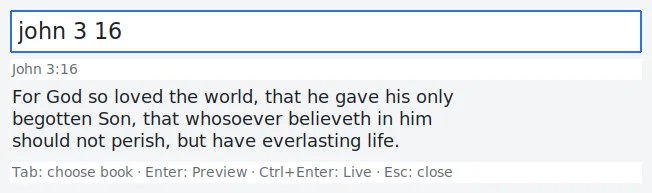
Quick search: start typing anywhere in the window, when no text box is selected. A small window
opens with what you typed. Matching books are listed as you type (jo → Joshua, Job, Joel, Jonah, John);
choose one with ↑/↓ and Tab, then type the chapter and verse. The verse text shows underneath before it goes up,
and a reference that doesn’t exist is explained (“John has 21 chapters”). Enter sends it to
Preview, Ctrl+Enter sends it live, Esc closes it.
The Search box (Ctrl+F) takes a reference, jn 3:16, 1 cor 13:4-7,
ps 23, which goes straight to Preview, or words, for god so loved, which lists up to
50 verses of the current translation. Click a result to preview it, double-click to send it live.
Quick search shows the verse before it goes up.
The projector
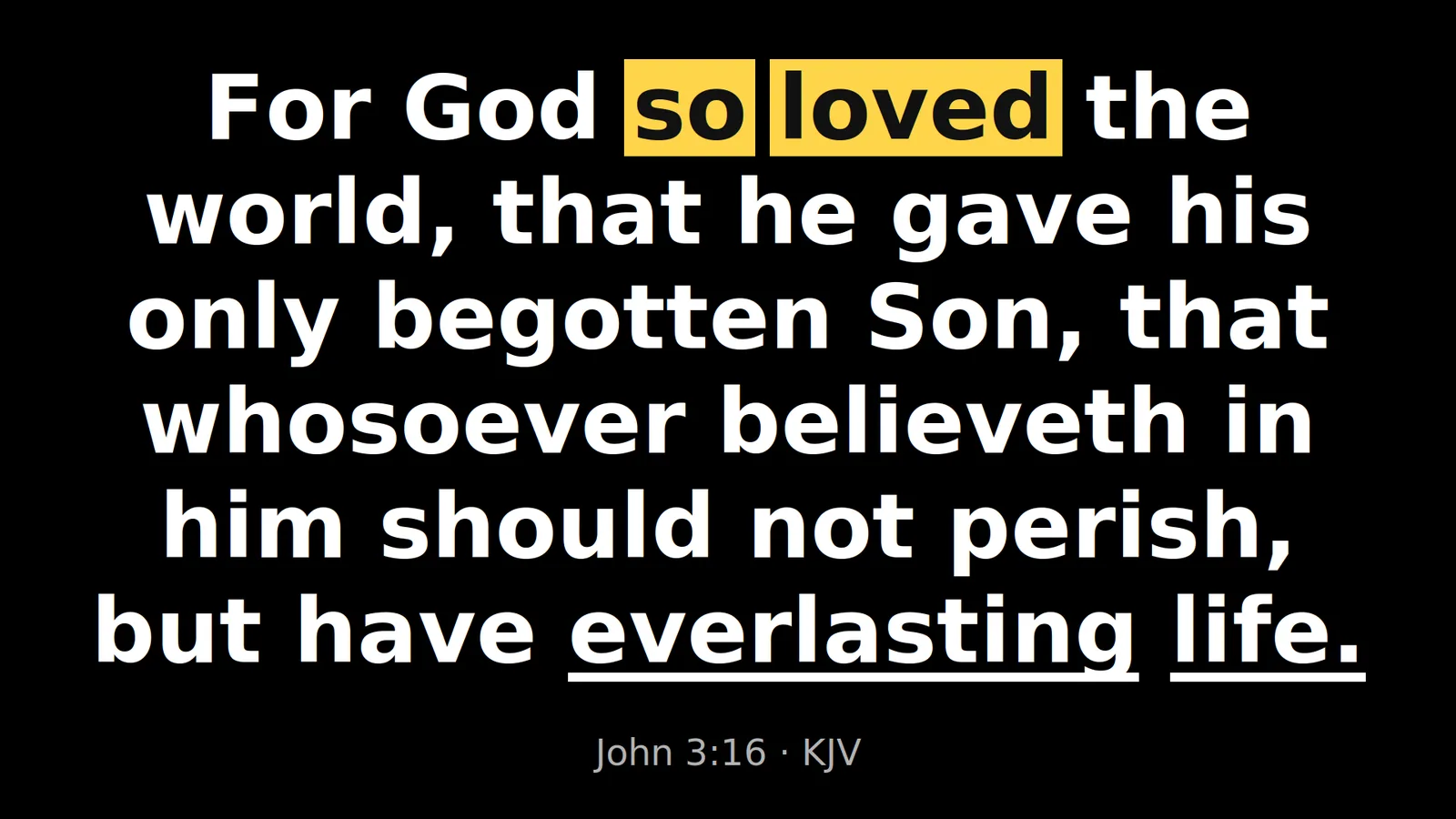
The output window: auto-fitted text, the reference line and emphasis.
Output window
Borderless and full screen on the screen chosen under Output. The text is sized to
fill the screen. With only one screen it opens as a window; F11 on it switches full screen.
BLANK and BLACK
BLANK (Esc) hides the text and keeps the background colour or picture. BLACK
(Shift+Esc) shows pure black. Press again to bring the verse back. Both always win over the idle screen.
Emphasis
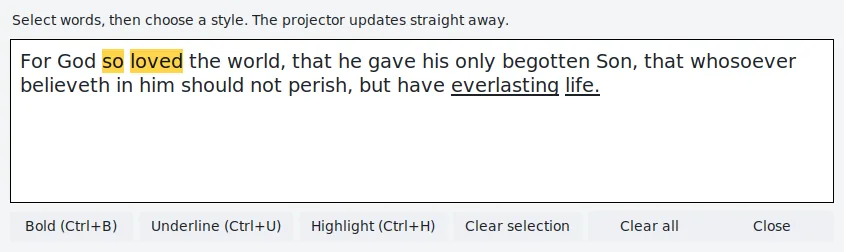
Press ✎ Mark (Ctrl+E) while a verse is live or in Preview, select words
and press Bold, Underline or Highlight; press again to remove.
The projector updates at once, and the marks come back next time for that verse in that version.
Idle screen
When nothing has been read for a while, the projector can keep the verse, clear to the
background, or show a colour, picture or looping video (see Settings → Idle
screen).
✎ Mark: bold, underline or highlight words of the verse.
Settings, tab by tab
Open ⚙ Settings. Apply keeps the window open, Close keeps your
changes and closes it, and Test output shows a sample verse on the projector. Biverse remembers
everything, including devices, display, translation and mode, for next time.
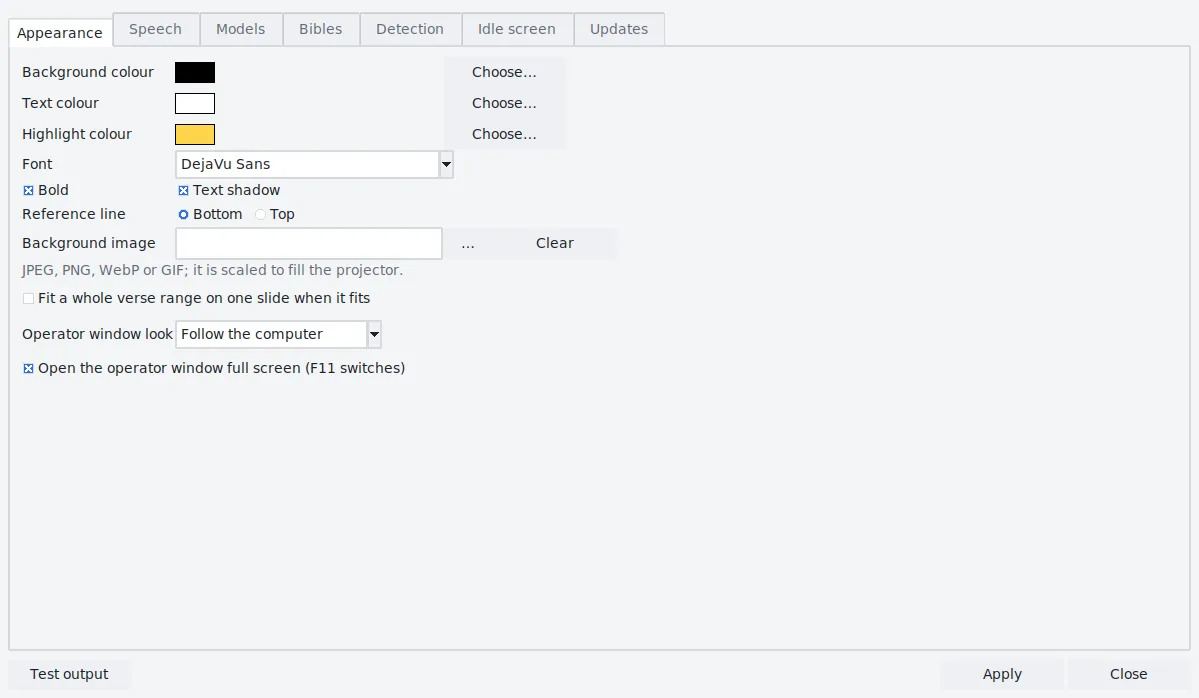
Appearance
Background colour, Text colour
The projector’s colours. Choose… opens a colour picker.
Highlight colour
The colour behind highlighted words (see Emphasis).
Font, Bold, Text shadow
The verse font, bold text, and a soft shadow that keeps text readable on a picture.
Reference line
Show “John 3:16 · KJV” at the Bottom or Top.
Background image
A JPEG, PNG, WebP or GIF behind the text, scaled to fill the projector. Clear removes it.
Fit a whole verse range on one slide when it fits
Show a short range such as John 3:16–17 at once instead of verse by verse.
Operator window look
Follow the computer’s light or dark setting, or always Light or Dark.
Open the operator window full screen
On by default. F11 (Ctrl+Cmd+F on a Mac) switches at any time.
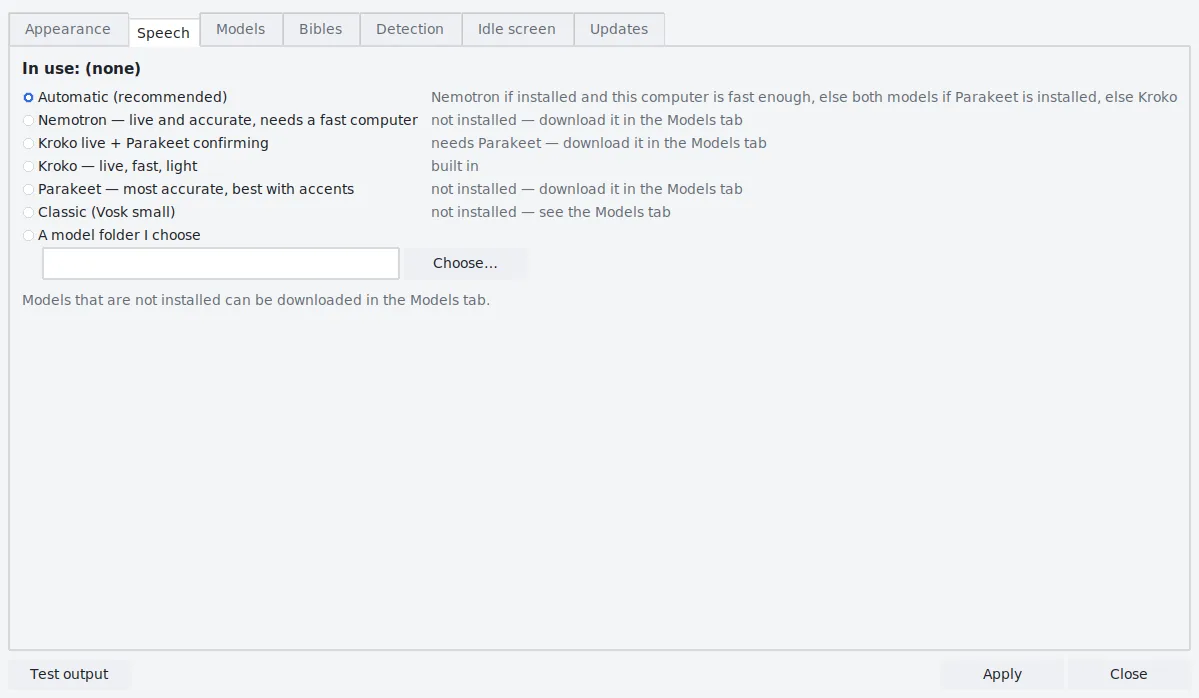
Speech
In use names the model listening now. Choose one:
Automatic (recommended)
Nemotron if it is installed and this computer is fast enough, else Kroko
+ Parakeet if Parakeet is installed and the computer can run it, else Kroko.
Nemotron
Live and accurate; needs a fast computer.
Kroko live + Parakeet confirming
Kroko reacts live and Parakeet re-checks each phrase at the pause.
Kroko
Live, fast and light. Built in.
Parakeet
Most accurate with accents, but only after each pause.
Classic (Vosk small)
For old Windows 7 computers where the others won’t run.
A model folder I choose
A Vosk model folder, or one prepared by tools/fetch_model.py.
Each choice says whether it is installed. See Speech models for what to pick.
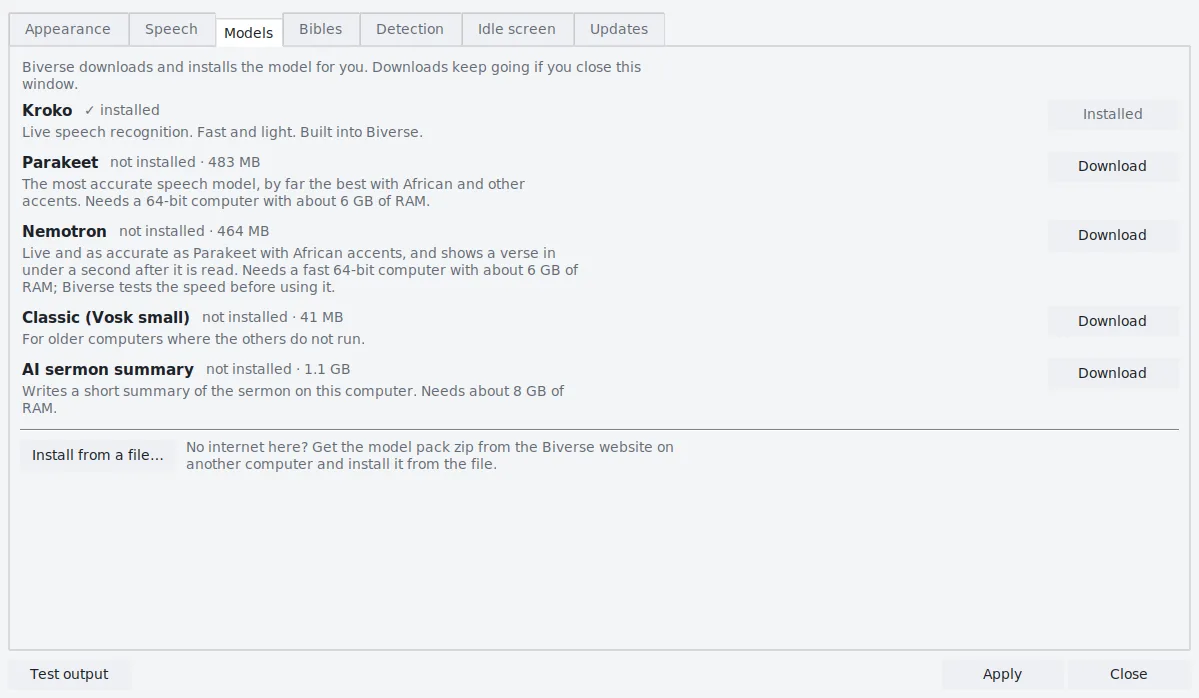
Models
Downloads and installs the optional models: Nemotron, Parakeet, the classic model and the AI sermon summary.
Press Download; a progress bar shows the size, speed and time left. Downloads keep going if you
close Settings, Cancel stops one, and pressing Download again continues where it stopped. Each
file is checked before it is installed. A model that this computer can’t run says Not available
and why. When a download finishes, Biverse switches to the new model (with Automatic), or asks first; if you are
listening it waits until you press Stop.
Install from a file… installs a model pack zip copied from another computer, for church
computers without internet.
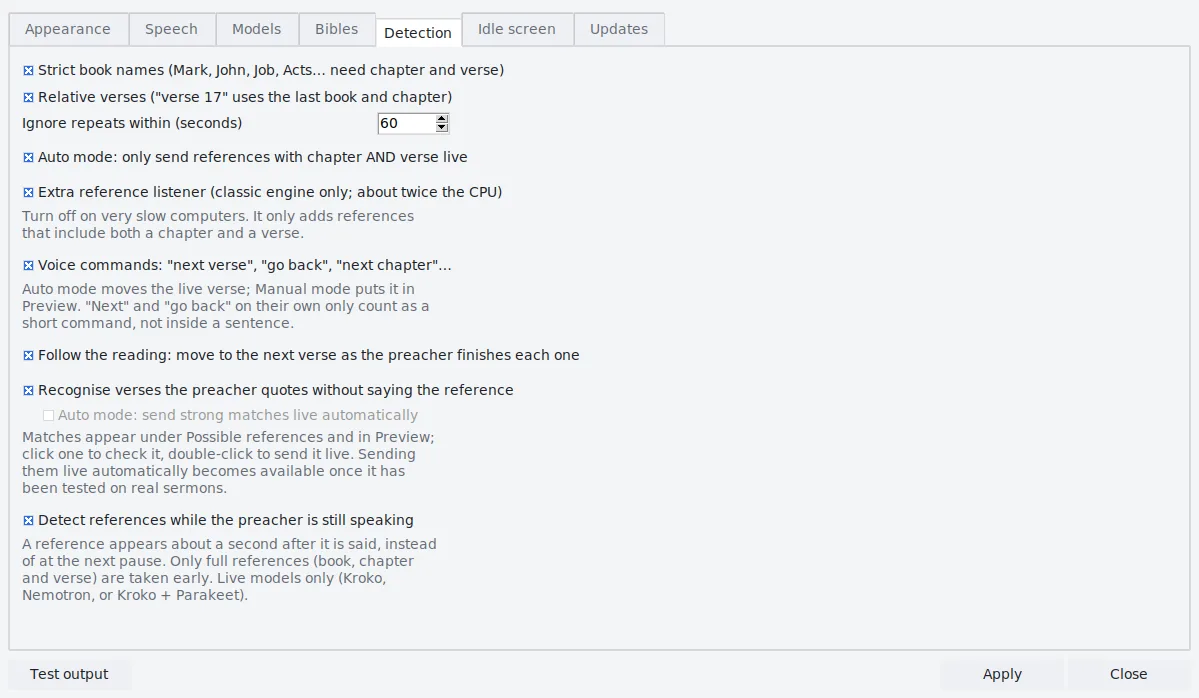
Detection
Strict book names
Mark, John, Job, Acts… need a chapter and a verse. On by default; turning it off
catches more but invites false alarms from everyday words.
Relative verses
“Verse 17” uses the book and chapter on screen.
Ignore repeats within (seconds)
The same reference heard again inside this time is not added again (60 by default).
Auto mode: only send references with chapter AND verse live
“Romans eight” alone goes to Preview, even in Auto mode.
Extra reference listener
Classic model only: a second listener that knows only book names and
numbers. It catches references the classic model mishears and roughly doubles the CPU it uses.
Voice commands
“Next verse”, “go back”, “next chapter”… (see Voice commands).
Follow the reading
Move to the next verse as the preacher finishes each one (see Following the reading).
Recognise verses the preacher quotes without saying the reference
Suggestions under Possible
references. Sending strong matches live automatically stays locked until it has been tested on real sermons.
Detect references while the preacher is still speaking
On by default. A full reference appears about
a second after it is said instead of at the next pause. Only for the live models: Kroko, Nemotron, or Kroko +
Parakeet.
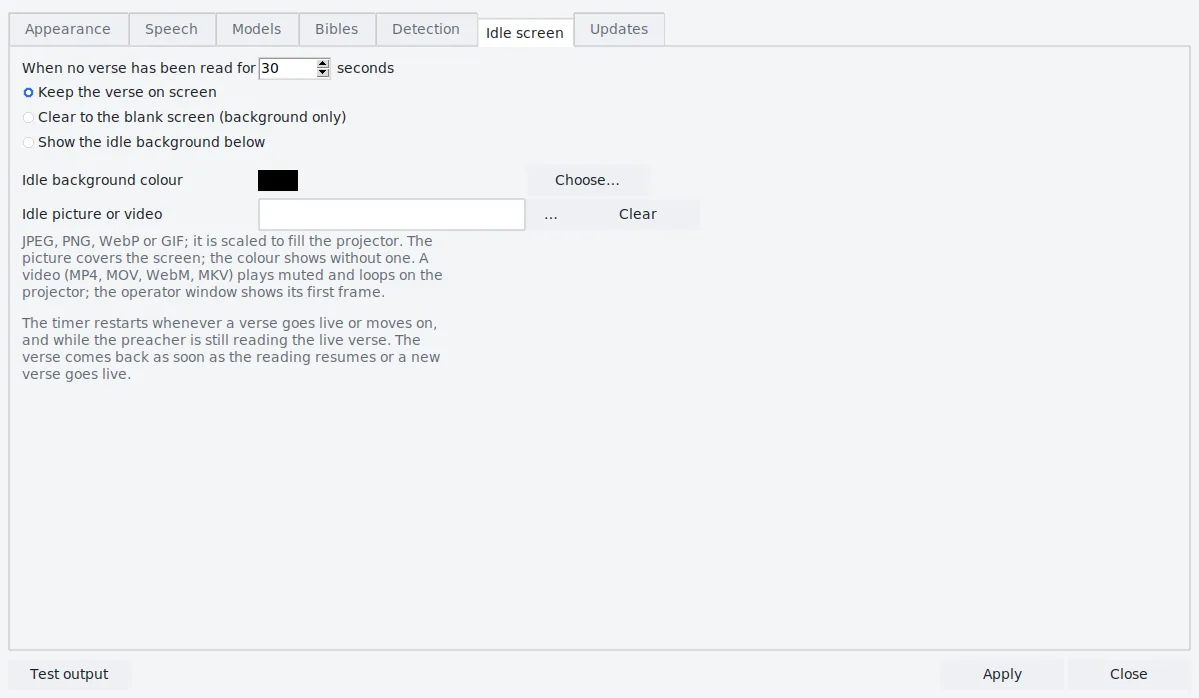
Idle screen
When no verse has been read for a number of seconds (30 by default), the projector can:
Keep the verse on screen
The default: nothing changes.
Clear to the blank screen (background only)
Like pressing BLANK.
Show the idle background below
An idle background colour, or an
idle picture or video, for example the church logo or a slow background loop.
A video (MP4, MOV, WebM or MKV) plays muted and loops at up to 24 frames a second. Videos work in the
windows-x64 download and on Macs with macOS 11 or later (Intel) or 14 or later (Apple Silicon);
elsewhere only pictures are offered. On an older computer, try the video before a service. The timer restarts
whenever a verse goes live or moves on and while the preacher is still reading, and the verse comes back by itself
when the reading resumes. The Live label says IDLE meanwhile.
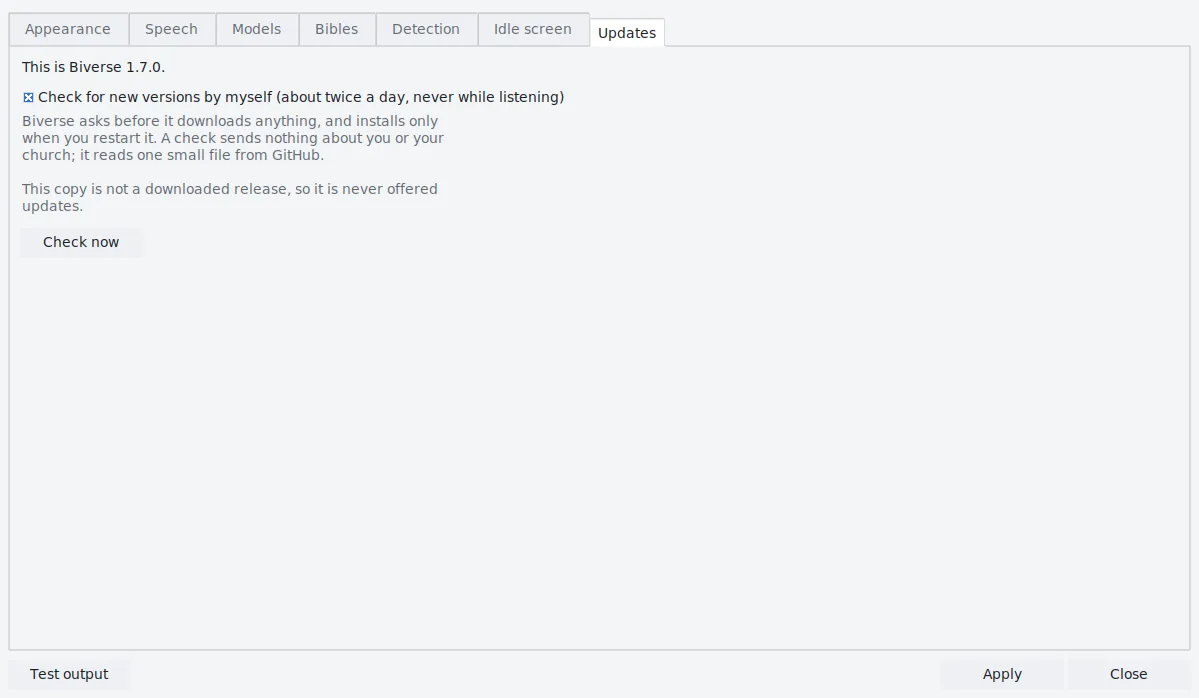
Updates
Shows the version you have. Check for new versions by myself (about twice a day, never while
listening) is on by default; Check now checks at once. When a new version is out, Biverse asks:
Download, Later or Skip this version. The download runs in the
background; when it is ready choose Restart now or When I close Biverse. The
previous version is kept next to the new one (Biverse.old on Windows, Biverse.old.app on
a Mac) in case you need to go back.
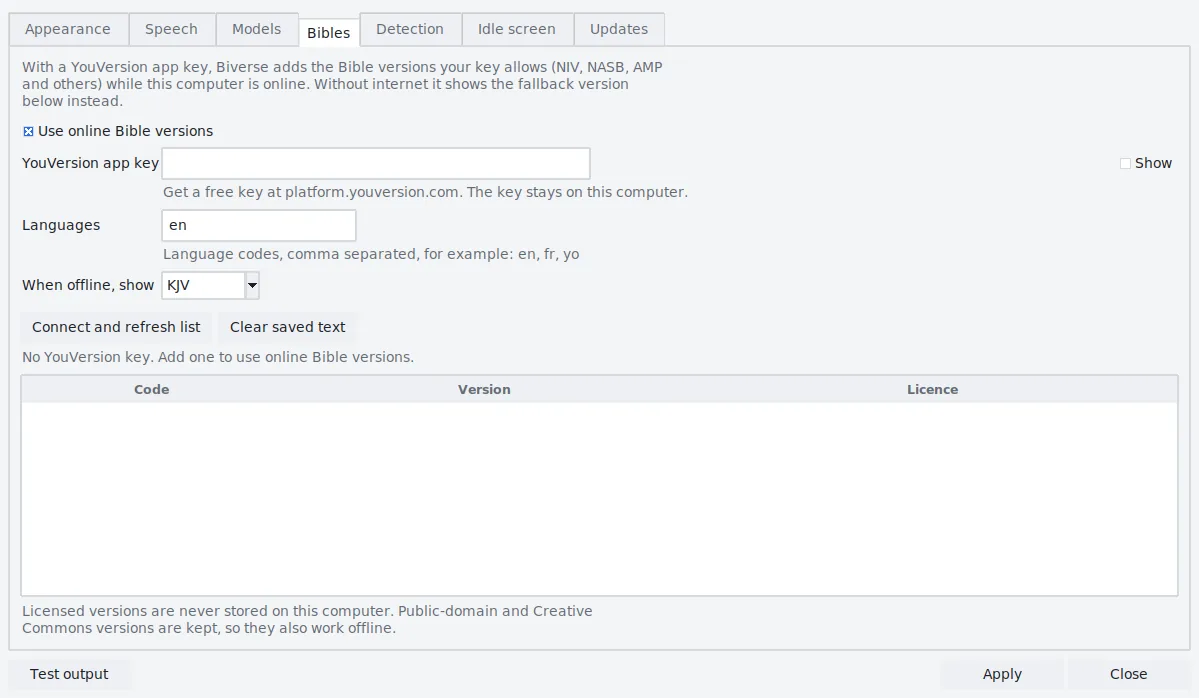
Bibles
Online Bible versions with your own YouVersion app key (see Bible versions).
Use online Bible versions
Off until you turn it on.
YouVersion app key
A free key from platform.youversion.com. It stays on this computer; Show reveals it.
Languages
Language codes, comma separated, for example en, fr, yo.
When offline, show
The version shown if the internet drops (KJV unless you change it).
Connect and refresh list
Fetches the versions your key allows, with their licences.
Clear saved text
Removes kept copies of public-domain and Creative Commons versions. Licensed versions are never stored.
Speech models
The speech model turns the preacher’s voice into words. All of them run on the computer. Kroko is built in; the
others are free downloads in Settings → Models.
Model
Best for
Needs
Kroko built in
Every computer. Words appear live; a reference shows about a second after it is said.
Any computer
Nemotron about 460 MB
Live words and Parakeet’s accuracy with African accents; a reference shows in under a second. Chosen automatically when the computer is fast enough: Biverse tests it each time it loads the model and otherwise uses the next model.
A fast 64-bit computer with about 6 GB of RAM (a recent Mac, Core i5/i7 or Ryzen)
Kroko + Parakeet
Kroko reacts live; Parakeet re-checks each phrase at the pause and catches what Kroko missed.
Parakeet installed, about 2 GB of free RAM
Parakeet about 480 MB
Very accurate with accents, but only after each pause.
64-bit, about 6 GB of RAM
Classic (Vosk)
Old Windows 7 computers where Kroko cannot run.
Any computer
In tests with 100 recordings of Nigerian English speakers, Nemotron got about 1 word in 12 wrong, Parakeet about 1
in 11 and Kroko about 1 in 7. In Biverse’s test of spoken references read straight into the verse, Nemotron caught
21 of 21 and Kroko 19 of 21, with no wrong verses from Nemotron. Clean sound matters more than the model: a feed
from the sound desk beats a laptop microphone in the room.
Bible versions
Included
KJV, WEB, ASV, YLT and BBE, all public domain, all offline.
Online versions
With a YouVersion app key (Settings → Bibles), the versions your key allows, such
as the NIV, NASB or AMP, join the Bible list. Their text is fetched a chapter at a time and licensed text is never
saved. If the connection drops, the slide shows your offline version, labelled as such, until it comes back.
Phrase search and following the reading use the installed versions only.
A licensed translation as a file
If your church holds a licence and has the text as a CSV file,
import it with --import-translation; it then works offline. The
guide
explains the file format.
By voice
“Let’s read this in the ASV” switches the projector and stays on that version until it is
changed again. A version that isn’t installed is named in the status line.
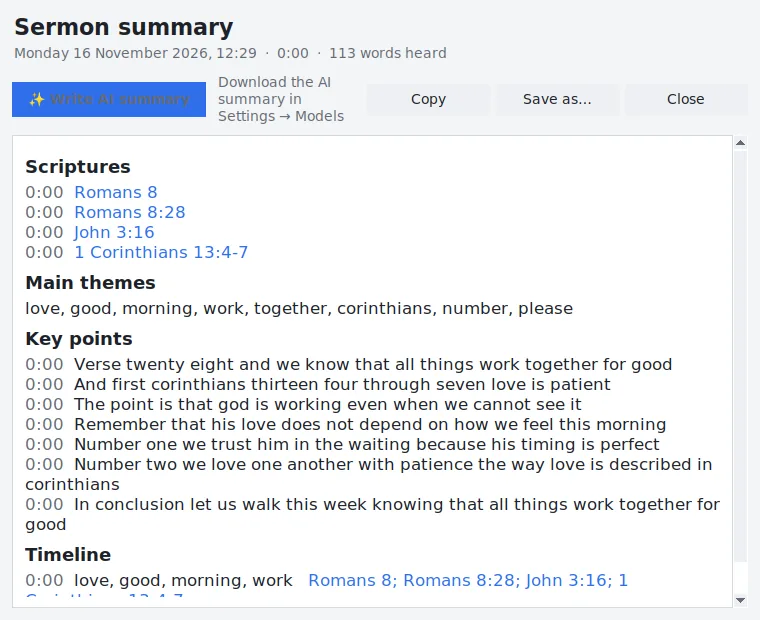
Sermon summary
While listening, Biverse keeps a record of the service. Service → Sermon summary…
(Ctrl+Shift+S) shows every scripture referenced with its time, the key points (sentences from the sermon itself)
and a timeline; Save as… and Copy include the full transcript.
Each service is saved: Service → Open a previous sermon…. A new record starts when you press
Listen after a 30-minute break, or with Start a new sermon. Paste and
Import… add a transcript (text, SRT or WebVTT); Clear empties it after asking.
AI summary (optional): with the AI pack from Settings → Models (about 1.1 GB, 8 GB of RAM,
Windows 10/11 64-bit, a Mac or Linux x64), Write AI summary writes a short prose summary on this
computer in under a minute. Nothing is sent anywhere.
The built-in summary works on every computer.
Keyboard shortcuts
On a Mac, use Cmd instead of Ctrl.
Key
Action
Ctrl+Enter or F5
Go Live
Esc
Blank (press again to restore)
Shift+Esc
Black (press again to restore)
← / →
Previous / next verse (not while typing in a box)
Ctrl+F
Jump to Search
Any letter or number
Quick search (when no text box is selected)
Ctrl+L
Listen on / off
Ctrl+M
Manual / Auto
F6
Pause / resume following the reading
Ctrl+E
Emphasis: bold, underline or highlight words
Ctrl+Shift+S
Sermon summary
F11
Full screen (operator window; on the output window, full screen / window)
Internet and privacy
A service never needs the internet: speech recognition, the five included Bibles and the summaries all run on the
computer, and no audio leaves it. Biverse goes online only when you press Download for an optional model, when you
use an online Bible version, and to check for a new version about twice a day (never while listening; turn it off in
Settings → Updates). The update check reads one small file from GitHub and sends nothing about you. There is no
account and no telemetry.
Troubleshooting
The level meter doesn’t move
Check Input and press ⟳. On a Mac, allow Biverse in System Settings →
Privacy & Security → Microphone; on Windows, allow desktop apps in Settings → Privacy → Microphone. A desk feed may
just be turned down.
Speech is heard but references are missed
Look at the transcript: if “genesis two eighteen” comes out
as “genesis to a team”, the sound isn’t reaching Biverse cleanly. Use a feed from the desk, and install Nemotron or
Parakeet in Settings → Models.
The verse appears on the wrong screen
Windows: Win+P → Extend. Mac: turn off mirroring. Then press ⟳
next to Output and choose the projector.
The idle video stutters
Use a picture or a smaller video, or measure it with
--bench-video as the guide describes.
Something else went wrong
Help → Open log folder and send biverse.log to
whoever helps you with computers. It contains no audio.
The user guide covers
more cases, including Windows 7 updates, antivirus warnings and macOS security prompts.